Promptly
Say what you want.
Press ⏎ when it looks right. Promptly is a native Mac terminal with intelligence that stays on your Mac — no account, and nothing runs until you press ⏎.
macOS 14 or later · 14-day free trial
Version 1.2.1 · updated
Apple Intelligence needs macOS 26; on-device models need Apple silicon.
Get to know Promptly.
Intelligence
Ask, Fix, Explain.
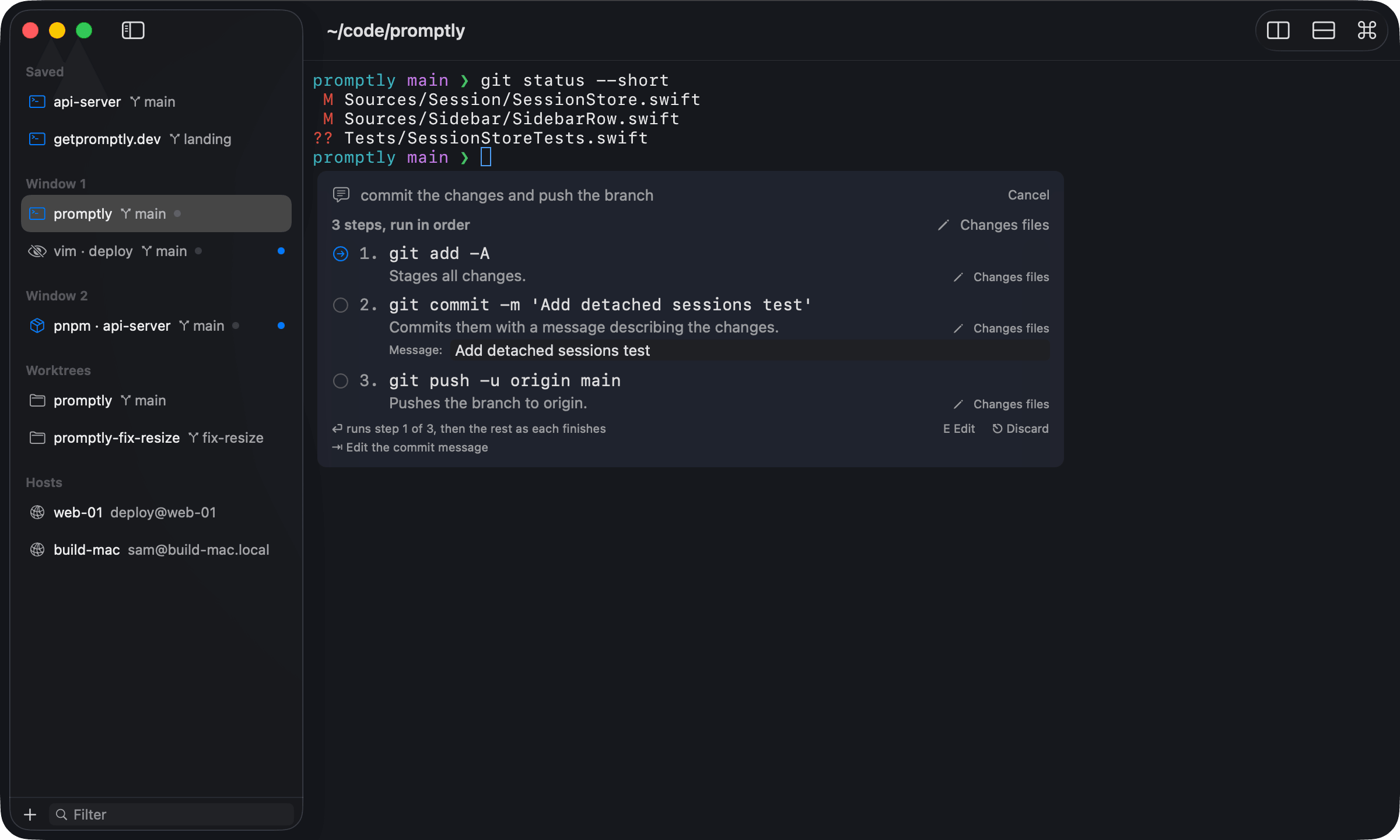
Promptly’s on-device models read only what they need, propose a command and explain it. Nothing runs until you press ⏎ — by default, and always for commands that can delete work.
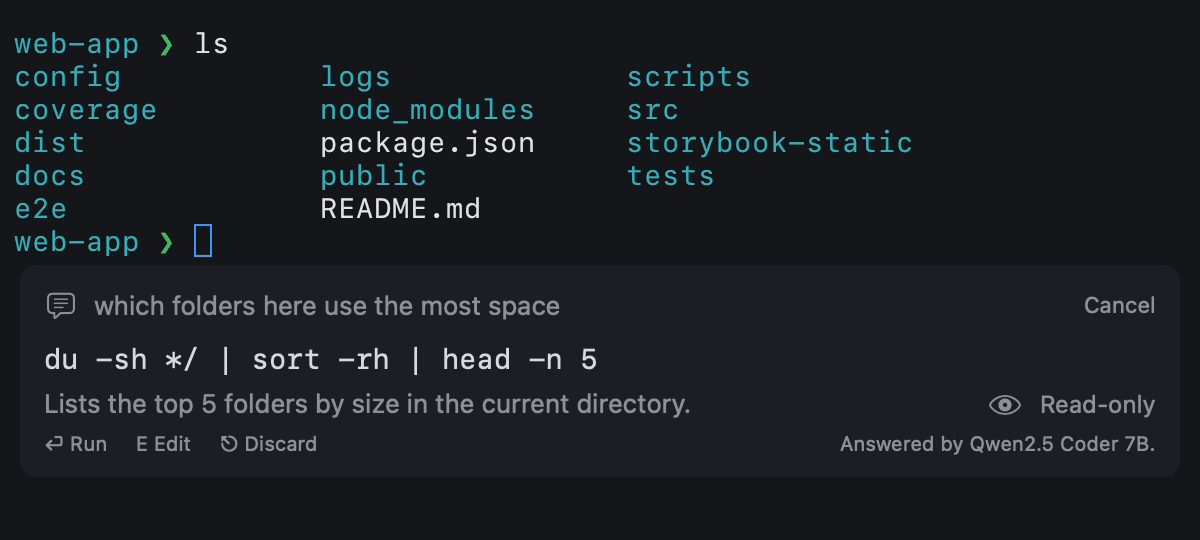
Ask. Describe what you want, for example “commit the changes and push the branch”. Promptly looks around read-only, then proposes the command with an explanation and a risk badge.
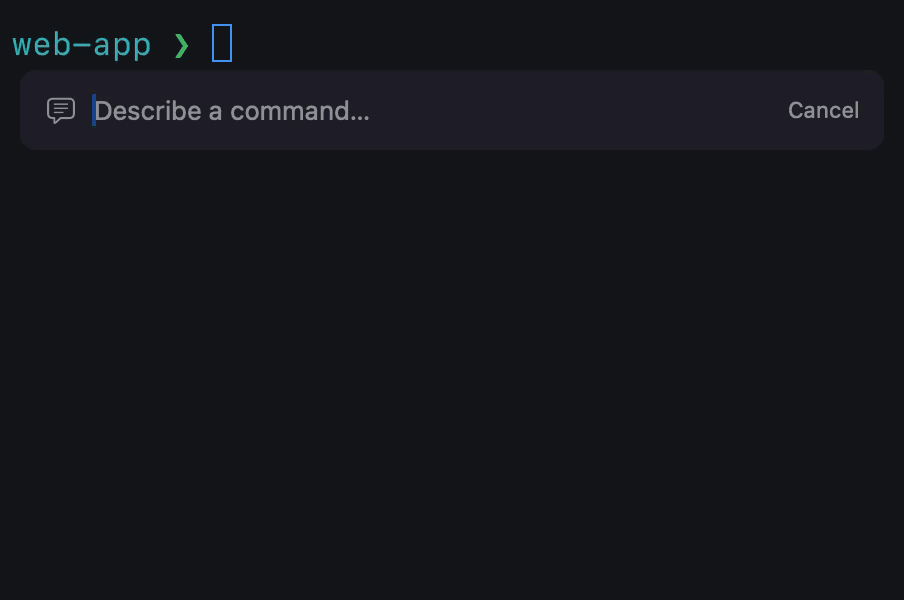
Three ways in. Choose Shell ▸ Ask…, type “? ” at an empty prompt, or run “ask” followed by your request in zsh, bash or fish.
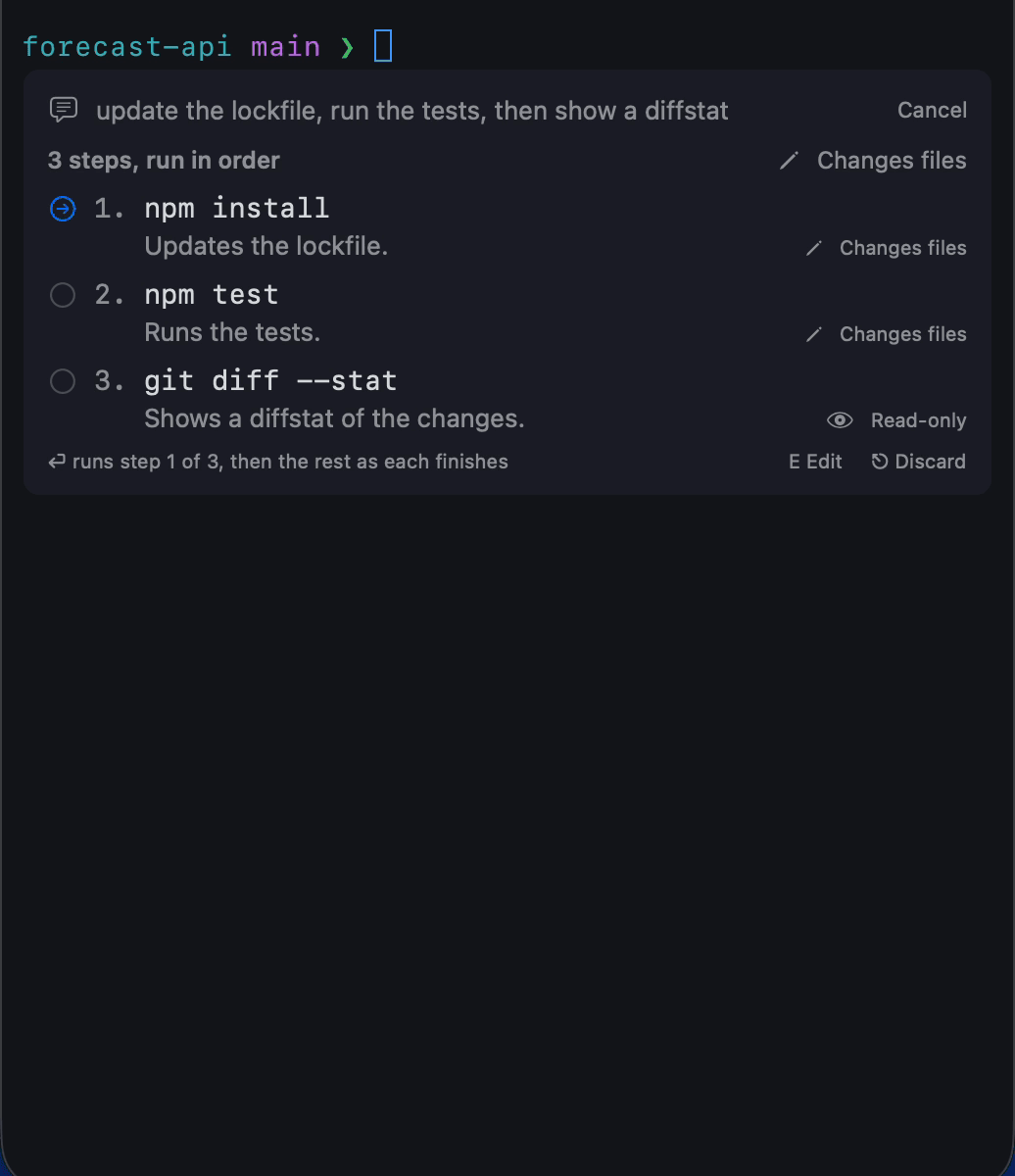
Plans that stop when a step fails. Some requests need several commands. They get a short plan whose steps run in order, each only if the one before succeeded. If one fails, Fix asks for the next move.
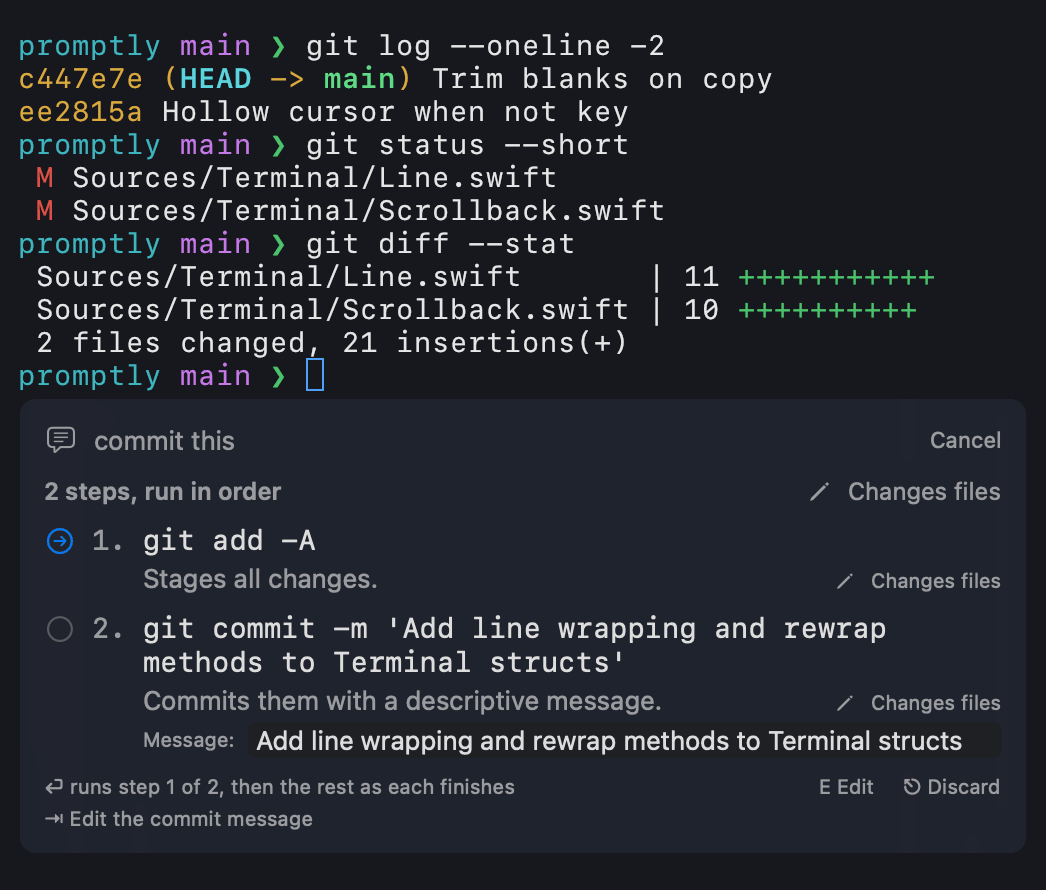
Commit messages you can edit. For a commit, Promptly reads the diff and drafts a message in an editable Message field. Read it, change it, then press ⏎.
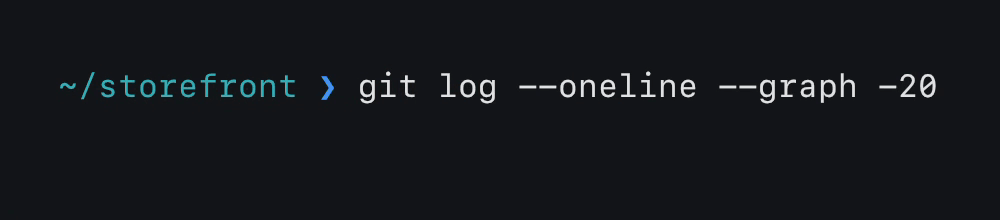
Ghost text. As you type, the rest of the command appears dimmed after the cursor, from your history or drafted on device. → or ⇥ accepts it as typed text. Nothing runs.
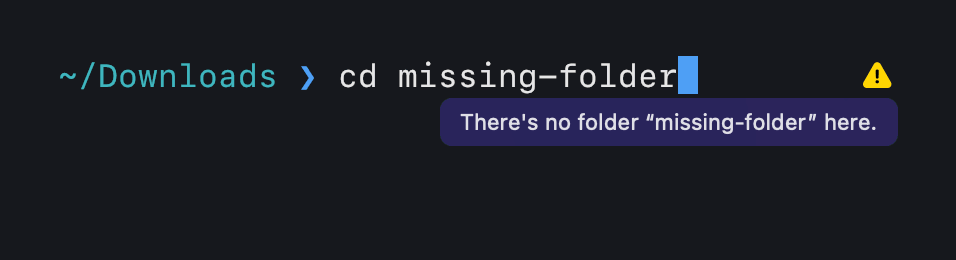
A check before Return. A yellow triangle at the end of the prompt line warns when a command looks wrong. Hover it for the reason. It never blocks Return.
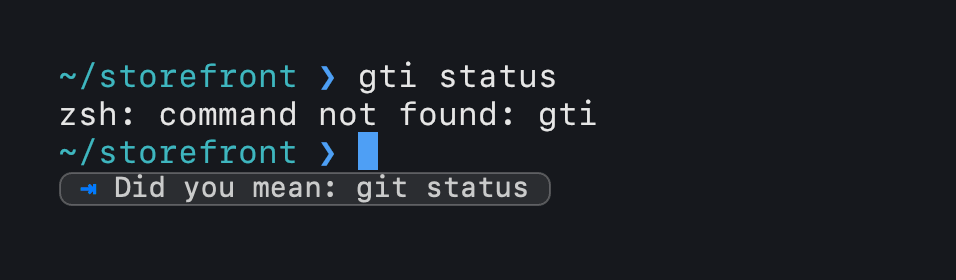
One suggestion after a failure. When a command fails, a single chip appears under the next prompt. ⇥ types it; you still press Return yourself.
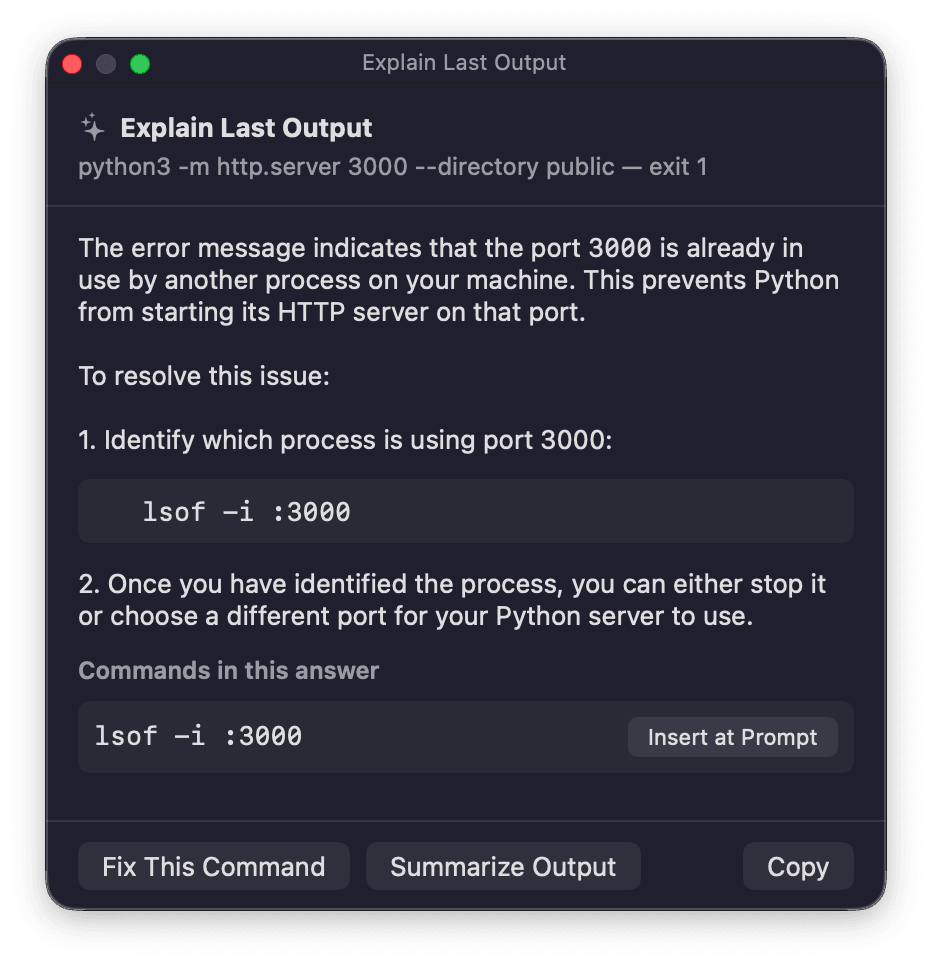
Explain, Fix, Summarize. The assistant explains the last output, fixes the last command or summarizes long output. Commands in its answer go to your prompt with Insert at Prompt.
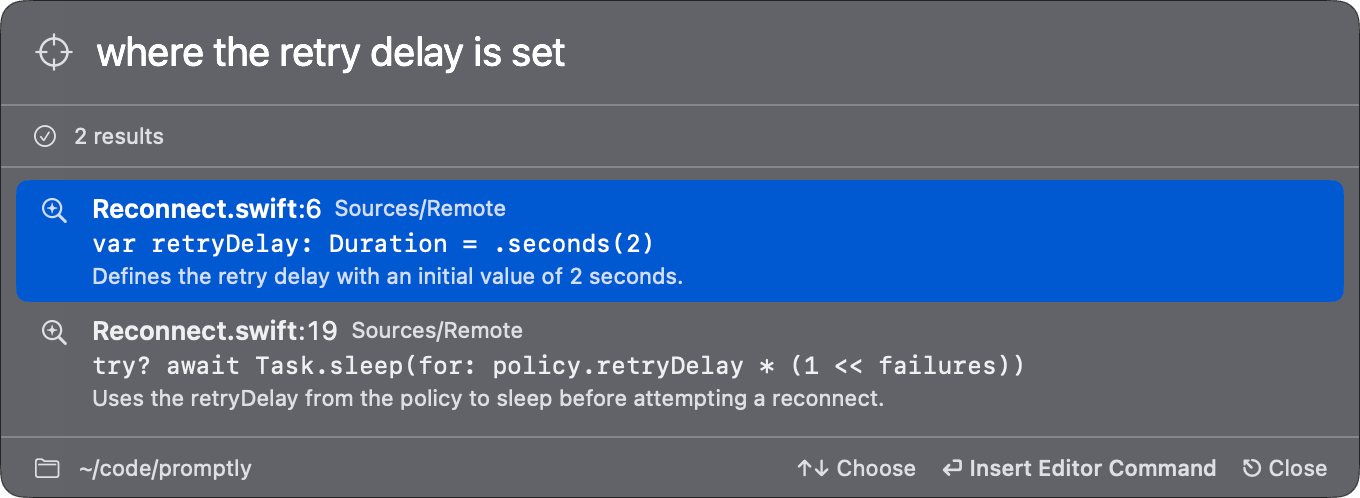
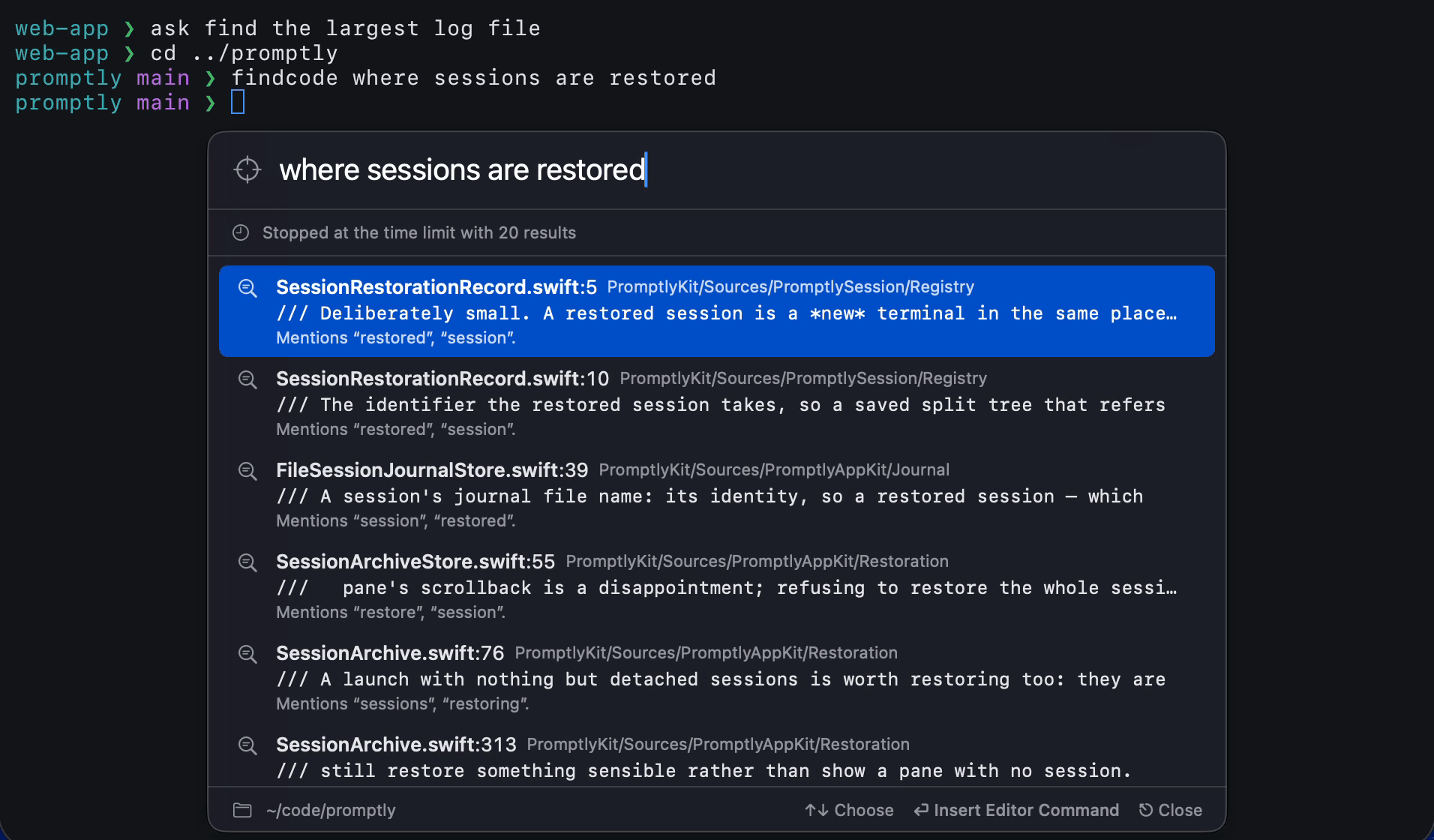
Find in Code. Describe a place in your code — “where the retry delay is set” — and get the file and line. Return types the editor command at the prompt.
Sessions
Your terminal, saved like a document.
Close the window. The session keeps running. Quit, and windows, tabs, splits, directories and coloured scrollback come back — after a crash you lose at most a few seconds of output.
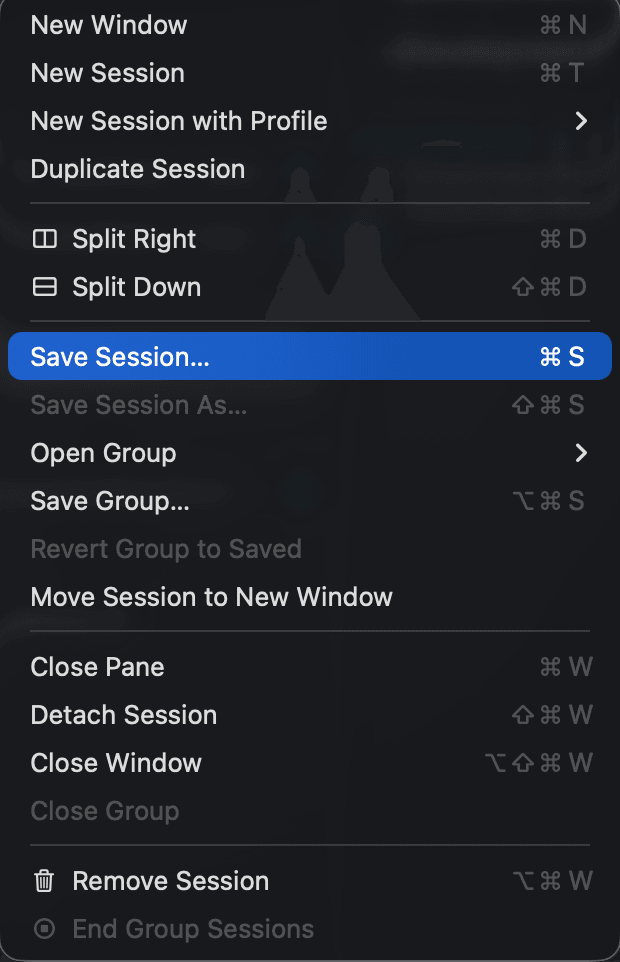
Save Session. Every new terminal is a scratch session. Keep one with ⌘S and it gets a name, like a document. Saved sessions live in their own section of the sidebar.
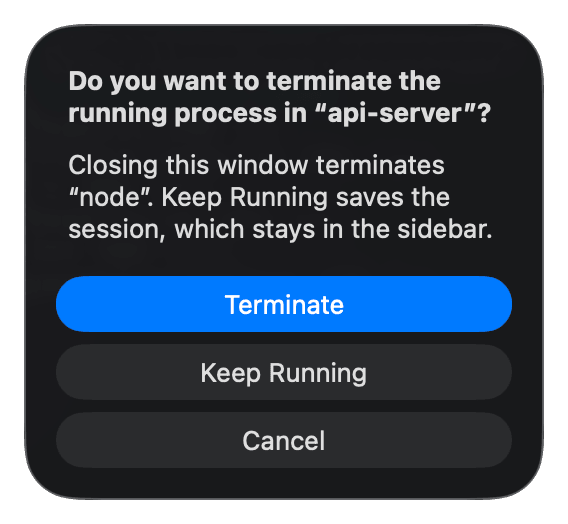
Close it. It keeps running. Closing a saved session doesn’t end it. It keeps running and comes back from its row. Close an unsaved one and Promptly asks only if a program is still running — Terminate, Cancel, or Keep Running, which saves it.
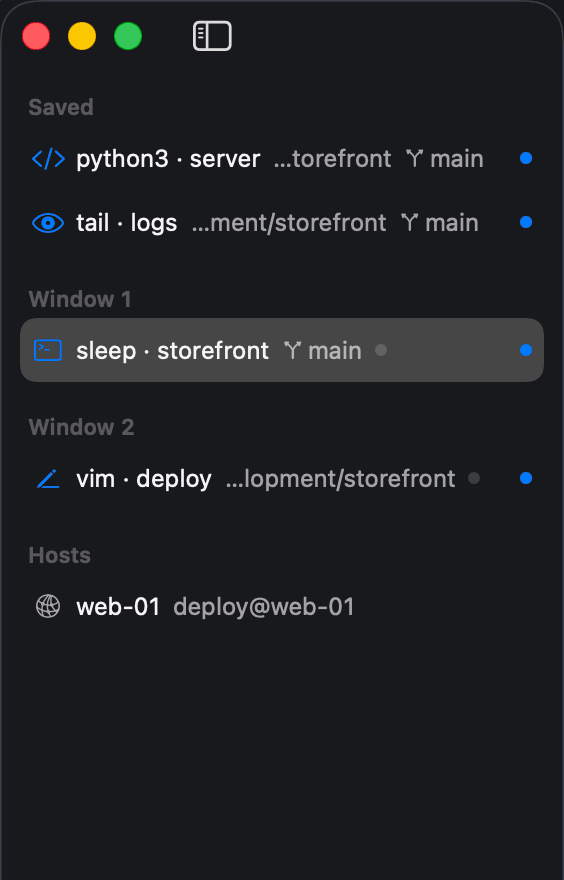
One list for everything open. The sidebar groups every session by window with its folder, git branch and running program — “vim · deploy”, “ssh · …”, “claude · …”. An accent dot shows while a command runs.
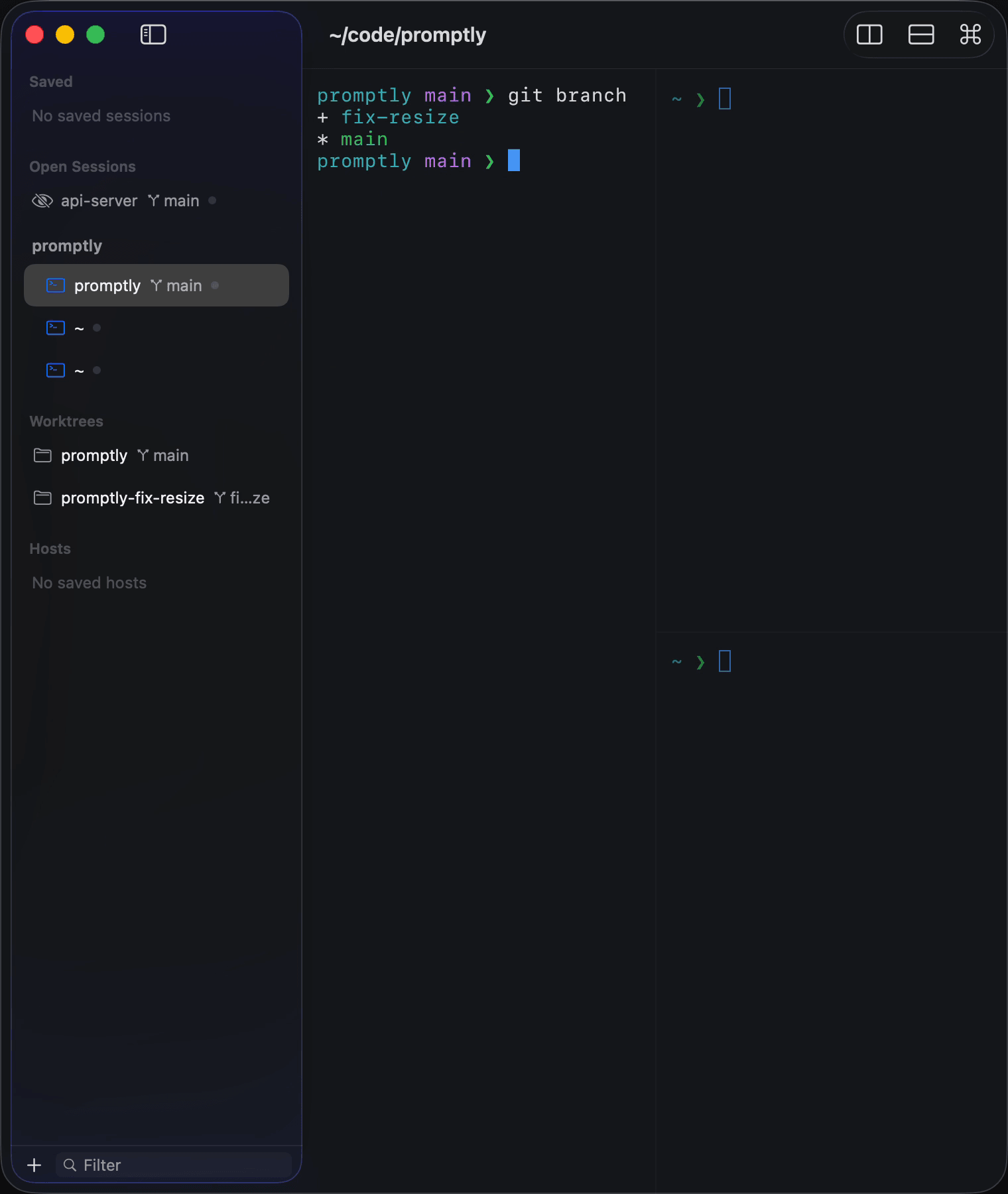
Splits, with the keys you expect. Any pane splits right or down. Drag panes and sidebar rows to rearrange a window, zoom a pane, or detach a session and bring it back in any window.
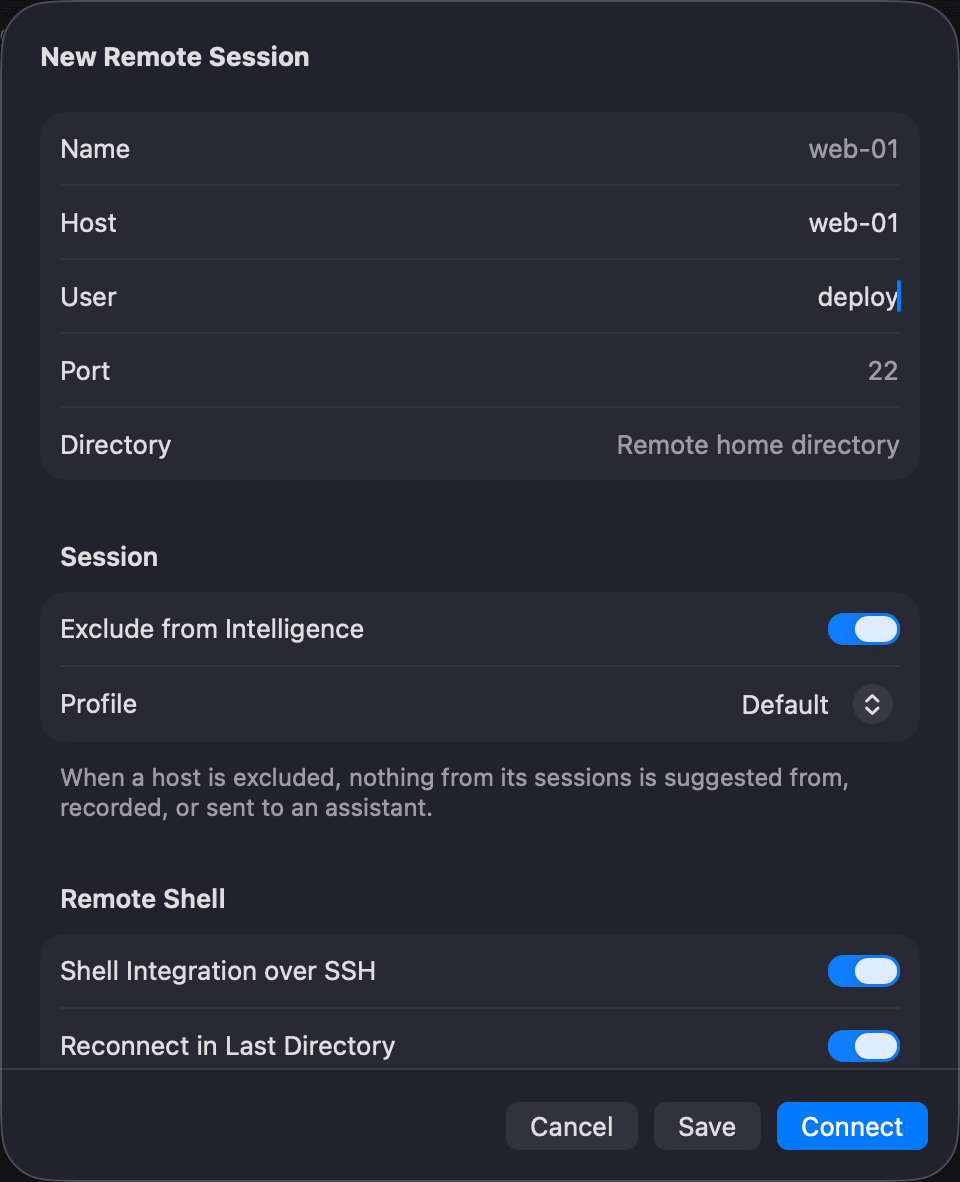
Saved hosts. Save a host once and connect from the sidebar. Promptly runs your Mac’s own ssh, so keys, ssh config and host-key prompts work as usual — and it stores no password or key.
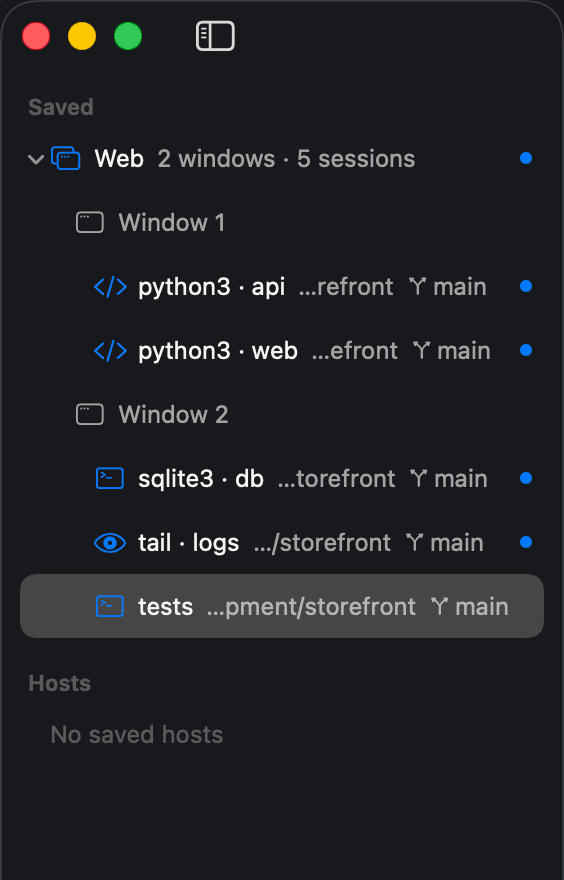
Save a group of windows. New Group from Windows (⌥⌘S) keeps a project’s windows, tabs and splits as one thing, like a document — close them all and open them again where they were, as tabs or separate windows.
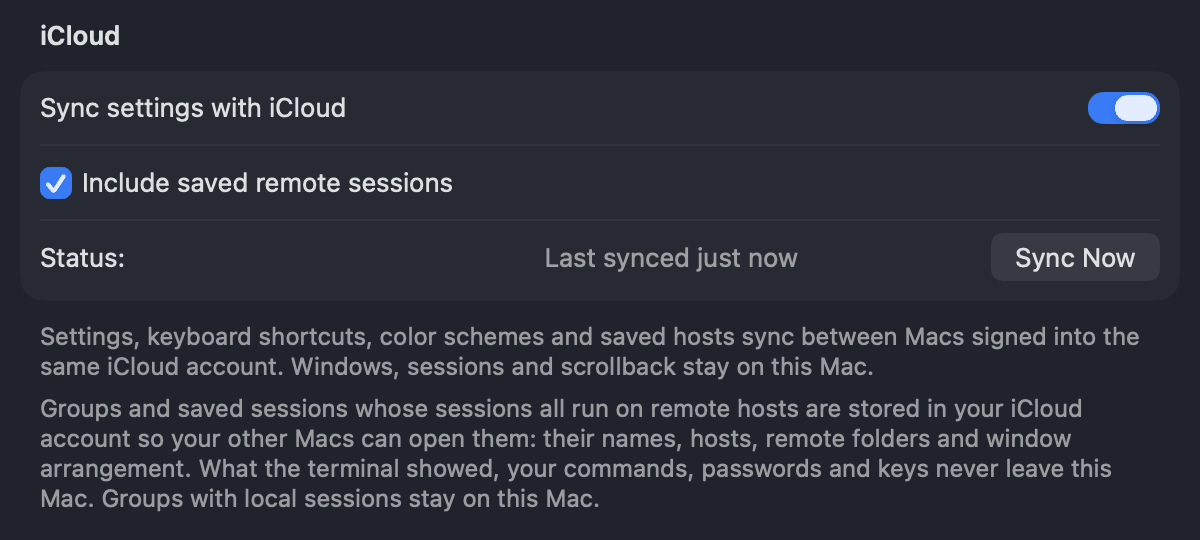
Remote sessions on your other Macs. Opt in, and groups and saved sessions that run only on remote hosts sync through your iCloud account — names, hosts, folders and layout, never what the terminal showed.
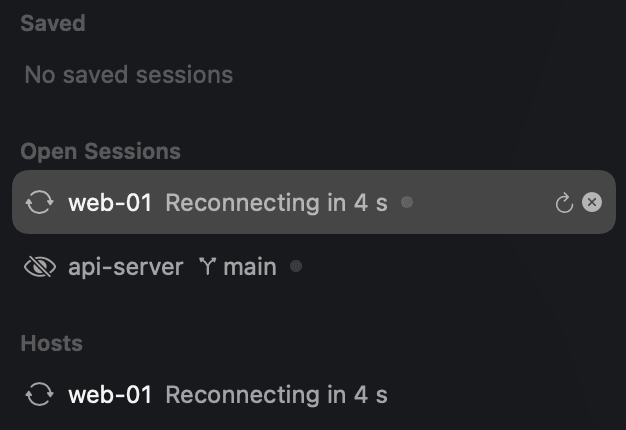
Reconnects by itself. A dropped connection counts down and reconnects on its own, with Reconnect Now and Cancel if you’d rather decide.
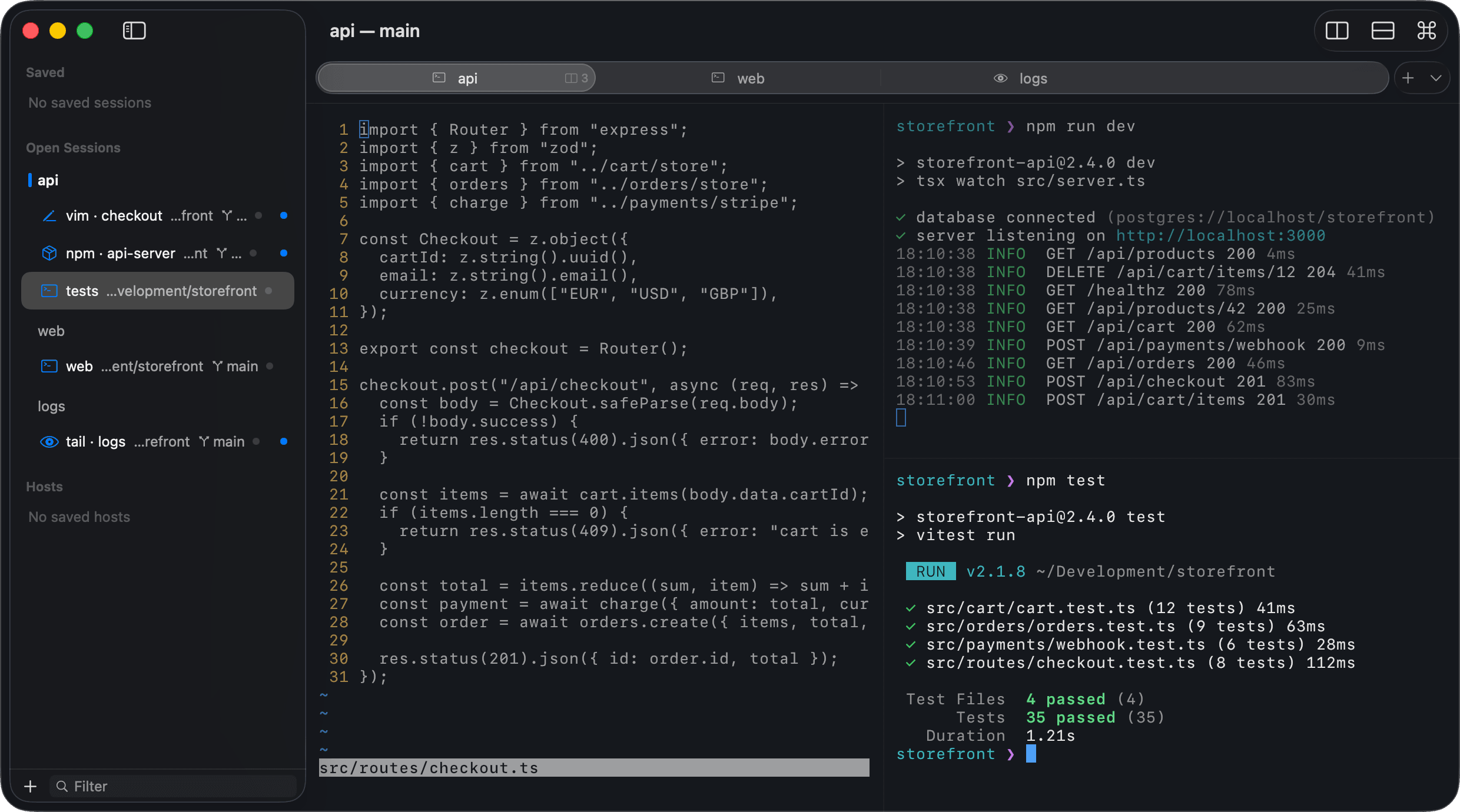
Tabs, and a sidebar for everything. ⌘T opens a tab in the folder you’re in; the strip appears once a window has two. Drag tabs between windows or tear one off, and ⌘1–⌘9 jump between them. The sidebar lists every session, open or not.
Safety
Nothing runs until you press ⏎.
Promptly shows you the command before anything happens, asks before the ones that can delete work, and leaves the last keypress to you.
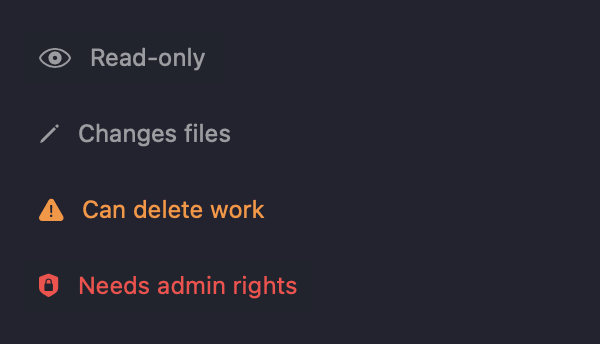
A risk badge on every proposal. Each command Ask proposes is marked Read-only, Changes files, Can delete work or Needs admin rights.
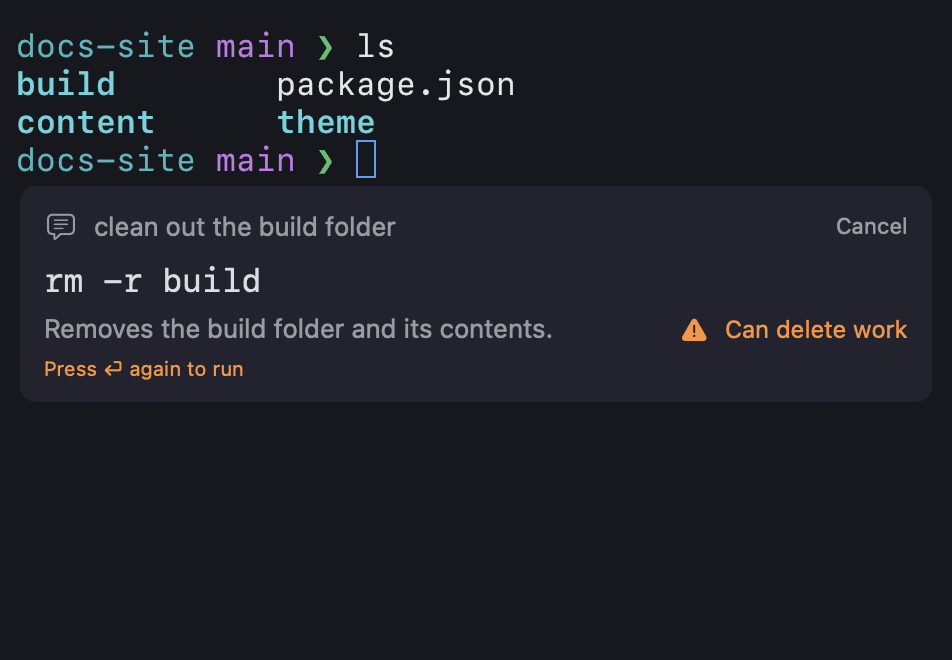
Risky means ⏎ twice. Commands that can delete work show “Press ⏎ again to run”, so a reflex keypress is never enough.
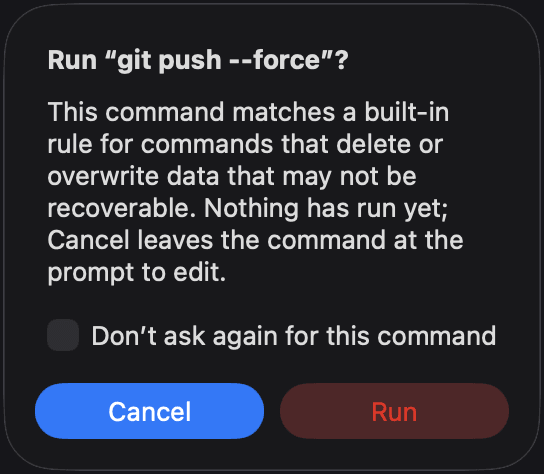
Asks before destructive commands. Turn it on and Promptly asks first before rm -rf, dd, sudo or a force push — with Cancel as the default. A model can add warnings but never remove one.
- Run without confirmation:Commands that can delete work or need administrator rights always ask first.✓NeverRead-Only CommandsUnless It Deletes Work or Needs Admin Rights
Run without confirmation, if you choose. Off by default. Opt in and safe proposals run as soon as they appear — but commands that can delete work or need administrator rights always ask first.
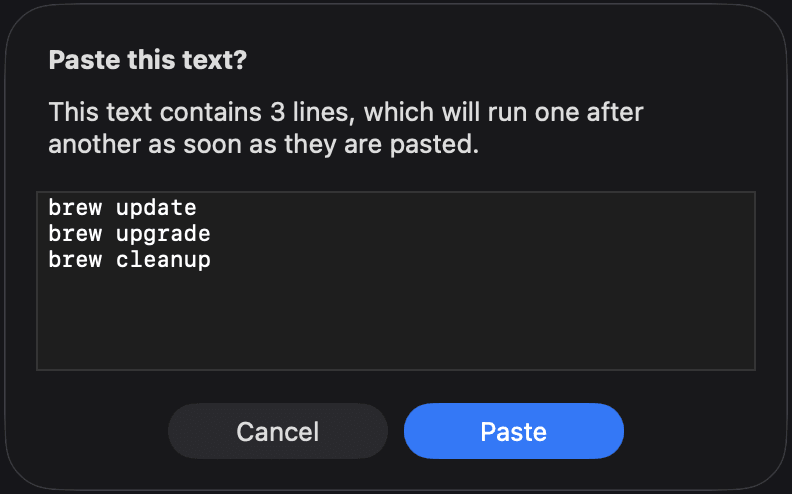
Pastes you meant. A paste of several lines asks first, so a stray clipboard never runs a script by surprise.
Privacy
Runs on this Mac.
No account and no telemetry. Command text, terminal output, prompts and answers are never logged. Model downloads, the opt-in update check and opt-in iCloud sync are the only times Promptly uses the network.
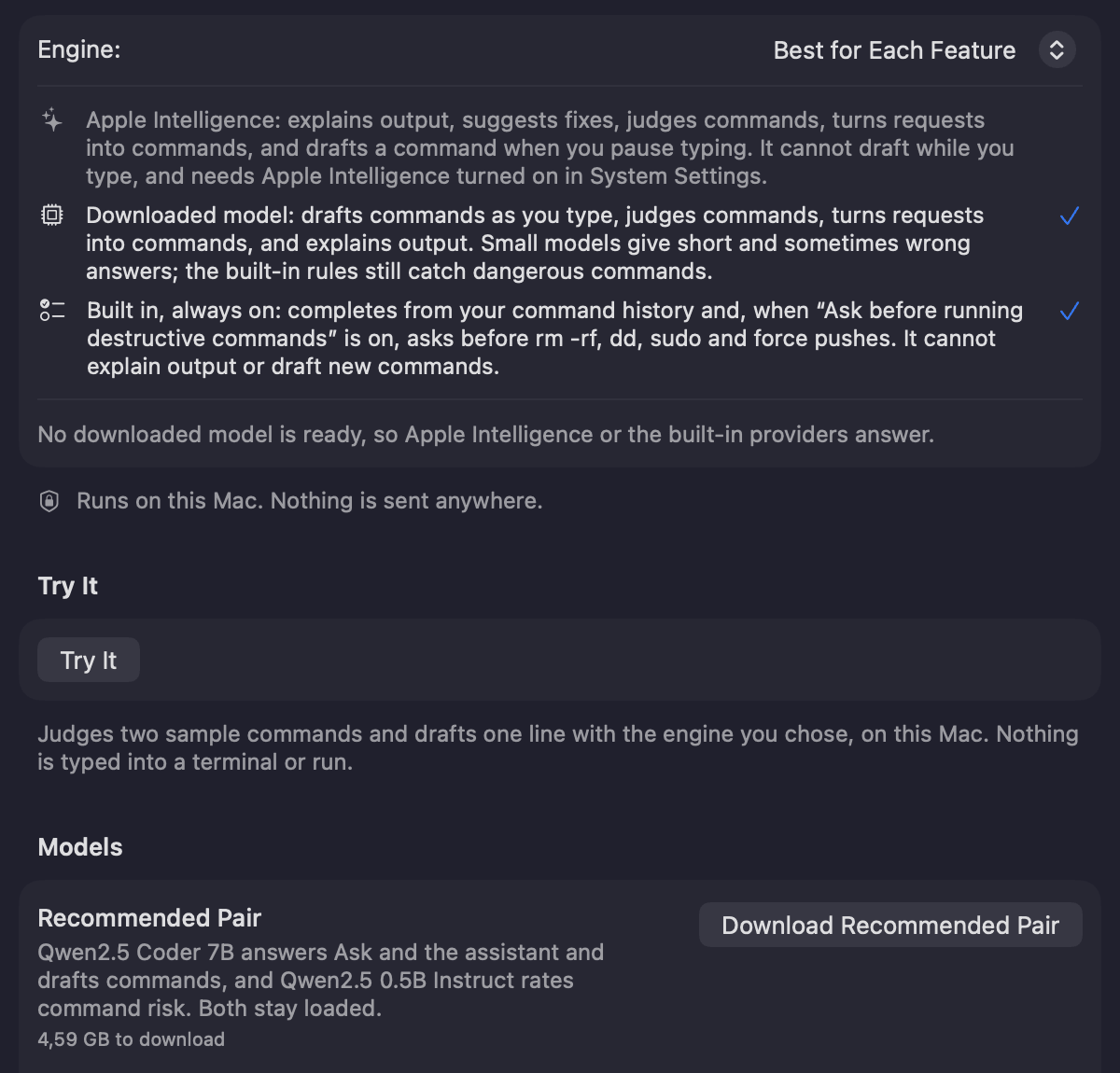
Best for Each Feature. Promptly downloads open models from Hugging Face and runs them on your Mac’s GPU, picking the best one for each job. Apple Intelligence is optional.
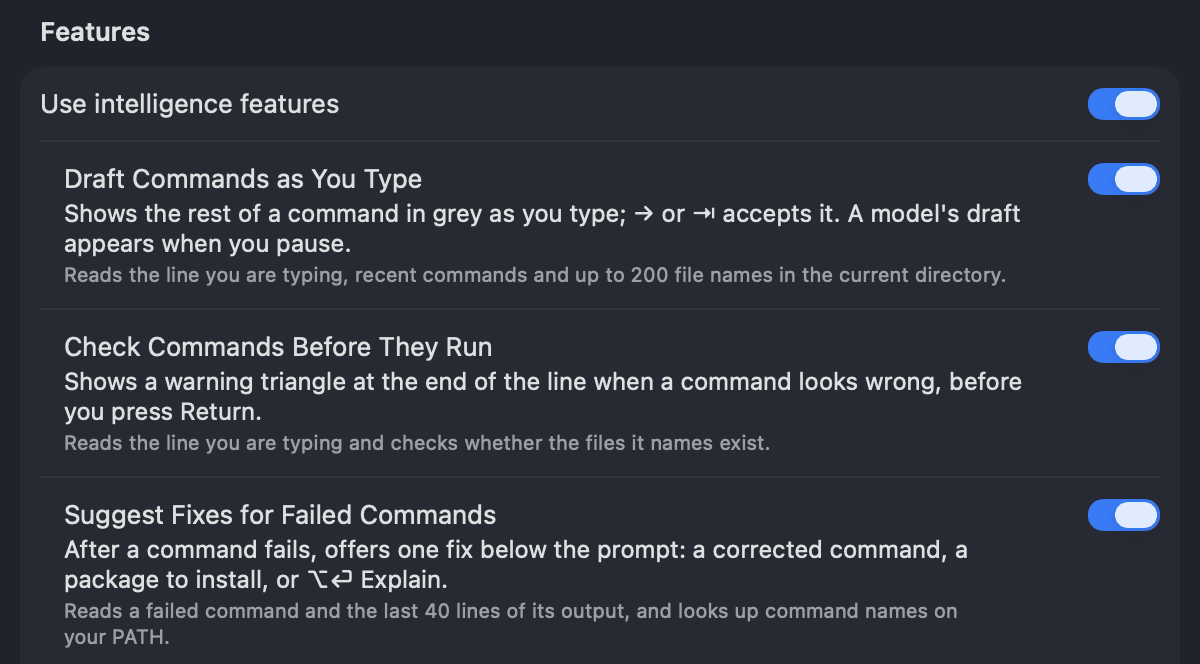
A switch for every feature. Every feature has its own switch, and off means it reads nothing. All intelligence runs on your Mac, with no API keys.
Shut intelligence out of any host. Exclude from Intelligence keeps a remote session out of every feature, one host at a time.
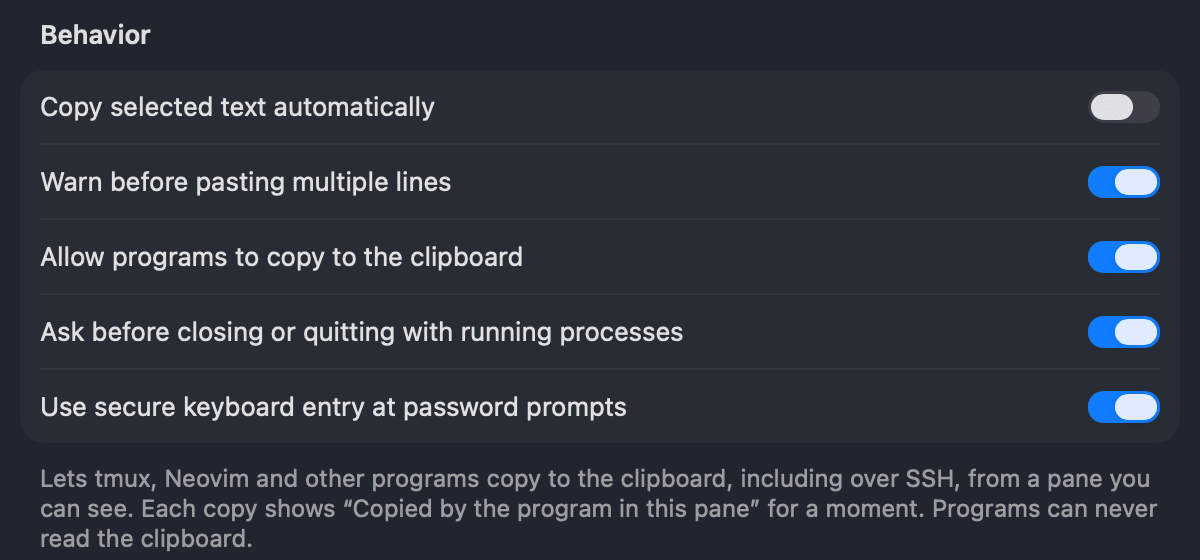
Your clipboard stays yours. Programs can copy to the clipboard — tmux and Neovim over SSH too — and each copy is shown. They can never read it.
Performance
Quick to open. Out of your way.
Native Swift, drawn with Metal. A prompt in under 0.4 s, a fresh window that’s easy on memory, and intelligence that adds no measurable typing latency.
3.5×
About 3.5× faster to launch than the terminal built into macOS.¹
A ready shell prompt in under 0.4 seconds.
Launch to shell prompt. Shorter is better.
28%
About 28% less memory for a fresh window than a leading GPU-accelerated terminal.²
A new window with an idle shell.
Memory footprint. Lower is better.
5×
Up to 5× the output throughput of the terminal built into macOS.³
A 100 MB file of coloured text, start to finish.
Time to print the file. Shorter is better.
8.5ms
Turning intelligence on adds no measurable typing latency.⁴
From key press to the character on screen, with every intelligence feature on and with all of them off.
The difference is smaller than the run-to-run spread.
13ms
Fix suggestions appear 13 ms after a command fails.⁵
Ghost text follows 67 ms after a keystroke, safety badges 212 ms after the line changes — most of that a deliberate pause so nothing flickers while you type.
A suggestion that misses its budget is dropped, not shown late.
4.2ms
Resizes without stretching or stutter.⁶
Each step of a live resize is laid out, drawn and presented well inside a single frame.
Craft
Made for the Mac.
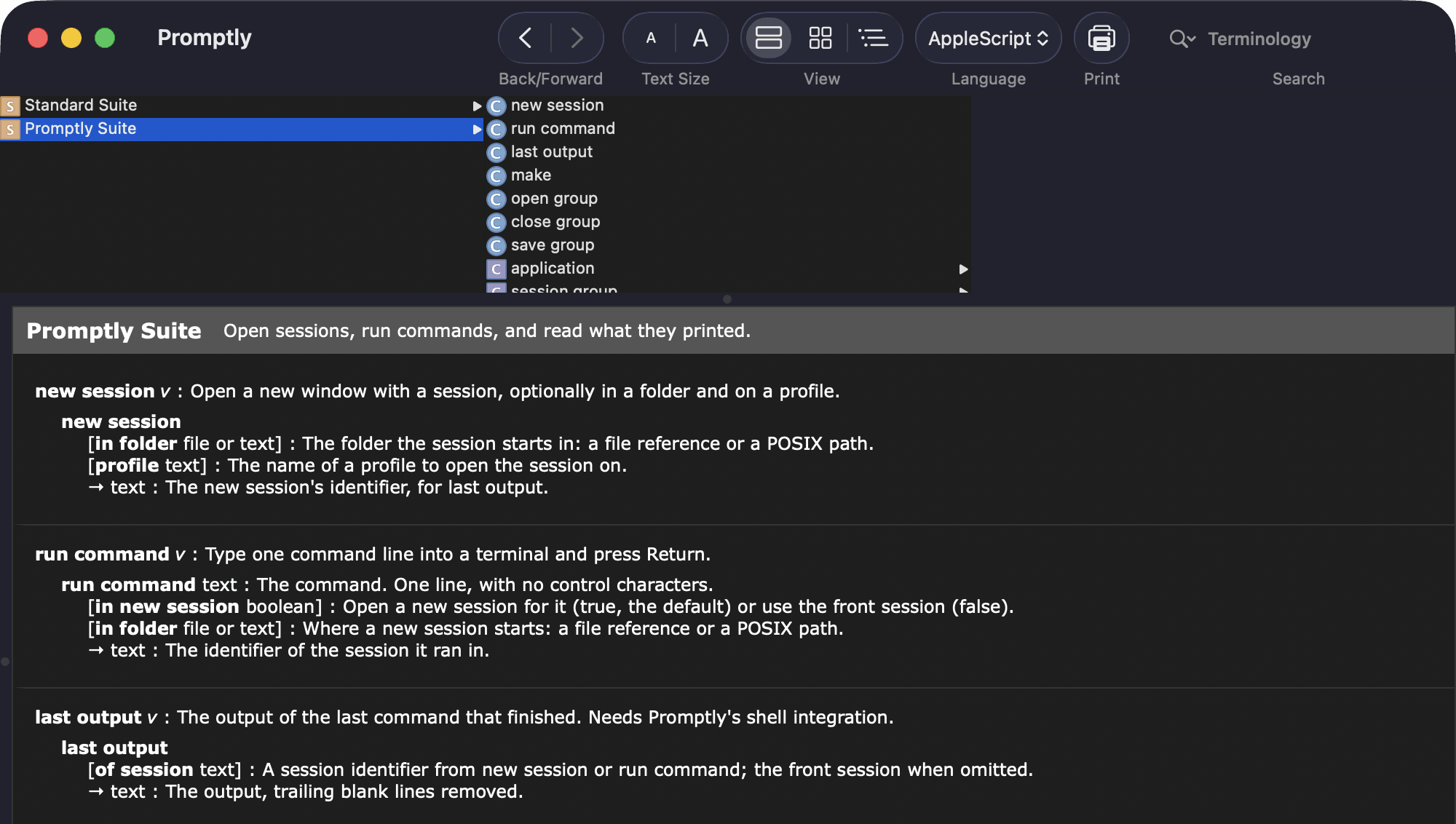
Light and dark schemes that follow the system, Shortcuts and AppleScript, and shell integration that works out of the box.
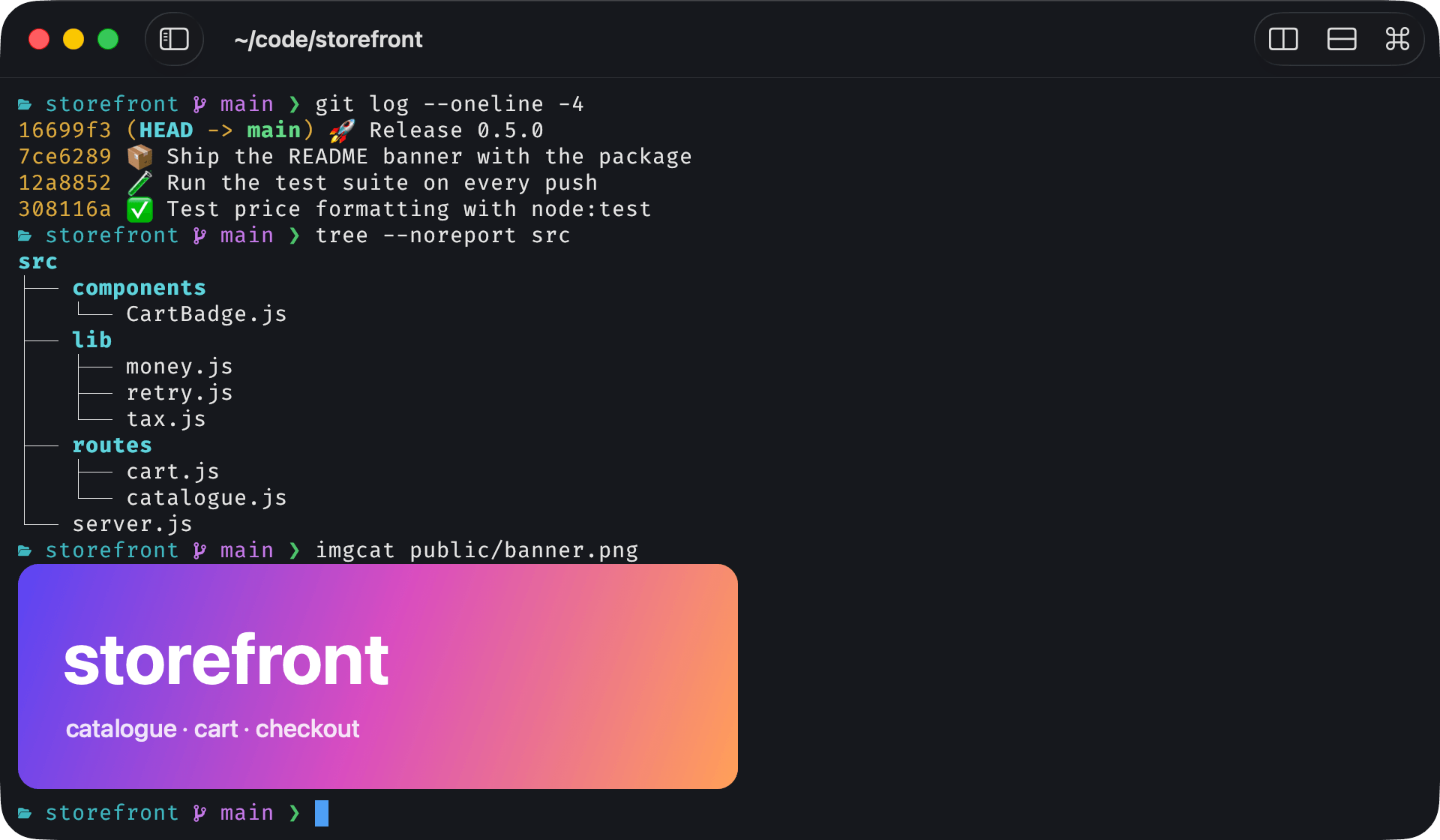
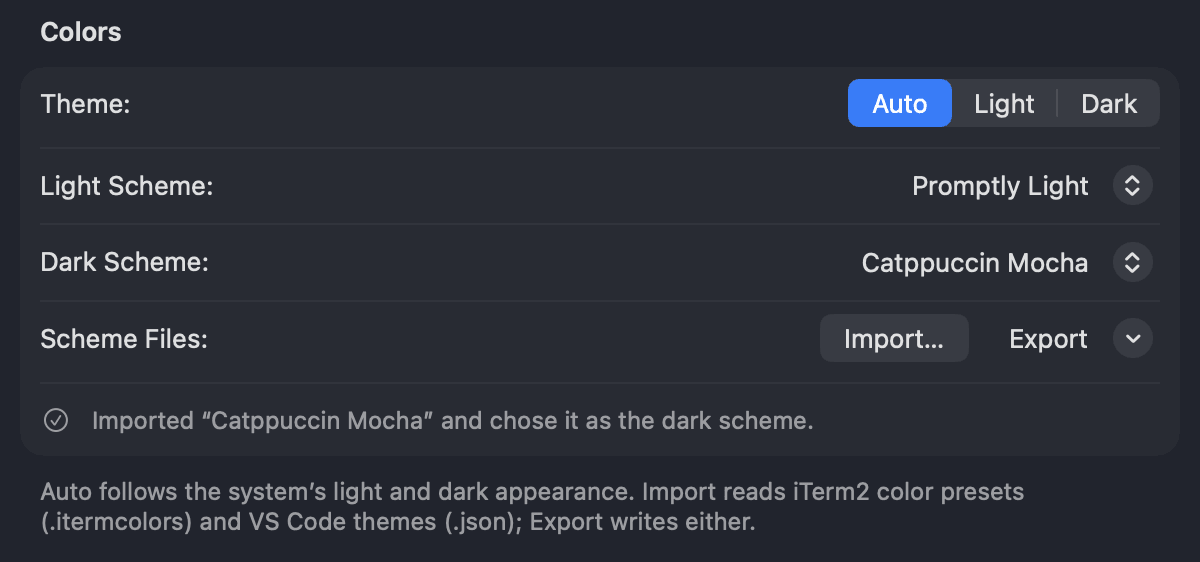
Drawn with Metal. Resizing rewraps lines and never stretches text, emoji and icons fit their cells, and images show inline using both widely supported terminal image protocols.
Questions? Answers.
What do I need to run Promptly?
Do I need an account?
Does anything leave my Mac?
How good is Ask, and how fast?
How much space and memory do the models use?
Will Promptly ever run a command on its own?
Does it work over SSH?
What happens to running programs when I quit?
Get Promptly for your Mac.
A native terminal for macOS, with intelligence that stays on your Mac.
macOS 14 or later · 14-day free trial
Version 1.2.1 · updated